
Sign in with a passkey instead of a password
A passkey lets you sign in with your face, fingerprint or device PIN. No password to type and no code to wait for.
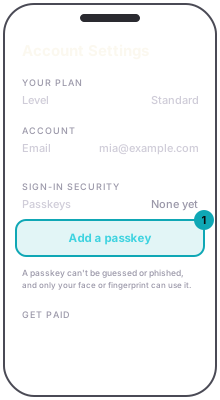
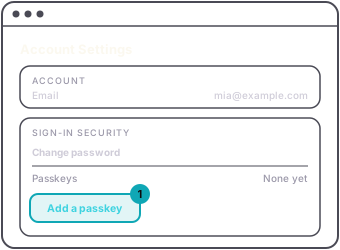
To add one, open Account Settings and find Sign-in security. Press Add a passkey and confirm on your phone or computer. You are also offered one right after you sign in with your password; Not now skips it.
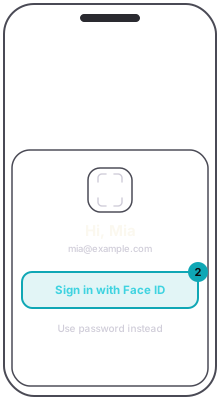
To sign in with it in the app, press Sign in, type your email and press Continue. On a phone with a passkey for your account, the button reads Sign in with Face ID on an iPhone, or Sign in with your fingerprint on Android. Use password instead is underneath.
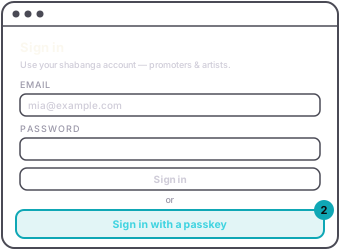
To sign in with it on the site, type your email in the Sign in box, then press Sign in with a passkey.
Each passkey is listed under Sign-in security with a Remove button. Removing one asks nothing first, and you can add it again any time.
Why we offer it: your account runs your events and holds your payouts. A passkey can't be guessed or phished, and only your face, fingerprint or device PIN can use it.